
When you’re looking for the right laptop, you may be wondering, ‘How much storage do I actually need on my laptop?
Whether you’re a student, gamer, working professional, or content creator, we will discuss how much storage your laptop should have.
Quick answer: A 512GB SSD is a practical all-around choice for many laptop buyers. 256GB can suit light use and cloud-based work. 1TB or more is worth considering for large games, video projects, and extensive local files. Your own apps and files should determine the capacity you buy.
What Is Laptop Storage Capacity?
Storage of a laptop means the available space on your computer that can hold your stuff, like the Operating System (OS), games, apps, files, pictures, and videos.
It’s often available in Gigabytes (GBs) and Terabytes (TBs).
The more storage you have, the more things you can keep on your laptop.
For instance, a 256 GB laptop can be good for general use. But, if you do video editing, then large files will occupy a major portion of your storage space, so you might need 1TB – 4TB of storage on your laptop.
However, having a lot of space may cost you a lot of money. SSDs can be up to twice as expensive as HDDs.
That’s why, before going for a fancy figure like 4TB, you should always check on your needs and the amount you are willing to pay.
Laptop storage capacity is the amount of data a drive is designed to hold. It is different from RAM, which is short-term working memory used by active applications. Storage keeps your files and programs even when the laptop is switched off.
How Much Storage Should a Laptop Have?
Choose storage based on the operating system, apps, files, and expected growth. These capacity ranges are practical starting points, not universal hardware requirements.
| User Type | Recommended Storage |
|---|---|
| Students | 256GB – 512GB |
| Business Users | 512GB – 1TB Gen 3 SSD |
| Gamers & Content Creators | 1TB – 4TB SSD Gen4 or Gen5 |
For web browsing, documents, and streaming, 256GB may be enough. For a larger collection of local files and applications, 512GB gives more flexibility. Many modern games and high-resolution media projects benefit from 1TB or more.
Laptop Storage Sizes: 128GB, 256GB, 512GB, 1TB, 2TB, and 4TB
Available space on a formatted drive will be lower than its advertised capacity because of operating-system files, recovery partitions, and differences in how storage sizes are displayed.
- 128GB: Very limited for a modern Windows laptop; best reserved for light, mostly online use.
- 256GB: Works for documents, browsing, online studies, and modest offline files.
- 512GB: A balanced option for many students, home users, and office workers with several installed applications.
- 1TB: Useful for gaming, substantial photo collections, and creative work stored locally.
- 2TB: Helpful if you keep many large games installed or regularly edit videos.
- 4TB or more: An option for particularly large project libraries or professional media workflows; compare external storage costs too.
Is 512GB Enough for a Laptop?
For many users, yes. A 512GB drive handles common office software, student work, photos, and some games. It may become restrictive if you save many large games or raw video files on the internal drive.
Storage is only one part of the decision. Our laptop buying checklist also covers RAM, processor selection, displays, battery life, and upgrade options.
Is 1TB Enough for a Laptop?
For many gaming and creative workloads, 1TB provides useful space, but it depends on how many large applications, games, and project files you need to keep locally.
Why is 256 GB enough for most users?
You might be thinking 256 GB might not be enough for you, so we conducted an experiment to help you understand how much data a casual PC user can store.
On average, most of us save photos, short and long-form videos, spreadsheets, and PDFs, and install apps like Zoom or maybe Python. Considering all these, we added hundreds of files to see how much space they take up.
Here is what we did.
| File / Item | Typical size | Count | Subtotal |
|---|---|---|---|
| Spreadsheet (15 k rows × 37 cols) | 30 MB | 12 | 360 MB |
| Word doc (≈ 6753 words) | 312 KB | 85 | 26.5 MB |
| PowerPoint (18 slides) | 720 KB | 22 | 15.8 MB |
| 2 h podcast | 328 MB | 4 | 1 312 MB |
| JPG screenshot | 32 KB | 150 | 4.8 MB |
| Mobile-camera photo (3.69 MB each) | 3.69 MB | 1 300 | 4 797 MB |
| 17 s uncompressed video | 26.88 MB | 7 | 188 MB |
| Canva design export | 319 KB | 60 | 19.1 MB |
| 8-page PDF | 211 KB | 40 | 8.4 MB |
| User-data subtotal | — | — | ≈ 6.7 GB |
| Zoom (installed) | 500 MB | 1 | 500 MB |
| Python + packages | 4 GB | 1 | 4 GB |
| Application subtotal | — | — | ≈ 4.5 GB |
| Windows 11, updates and recovery allowance (illustrative) | 50 GB | 1 | 64 GB |
| Grand total | — | — | ≈ 61 GB |
The experiment showed that after adding hundreds of files, including spreadsheets, documents, presentations, and various media, the total “data” came to approximately 6.7 GB.
This included a significant number of items, such as 12 large spreadsheets with roughly 2 lac leads data, 1,300 mobile-camera photos (taking up nearly 4.8 GB alone), and 4 two-hour podcasts. On top of that, we added common applications like Zoom (500 MB) and Python with its packages (4 GB), bringing the “application subtotal” to about 4.5 GB.
Using an illustrative 50 GB allowance for Windows, updates, and recovery files, the example comes to around 61 GB in total. This allowance is for planning: it is not a measurement of Windows 11 on every device. That leaves significant room on a 256 GB drive.
Based on these results, if you’re not a gamer or content creator, a 256 GB drive is sufficient for you.
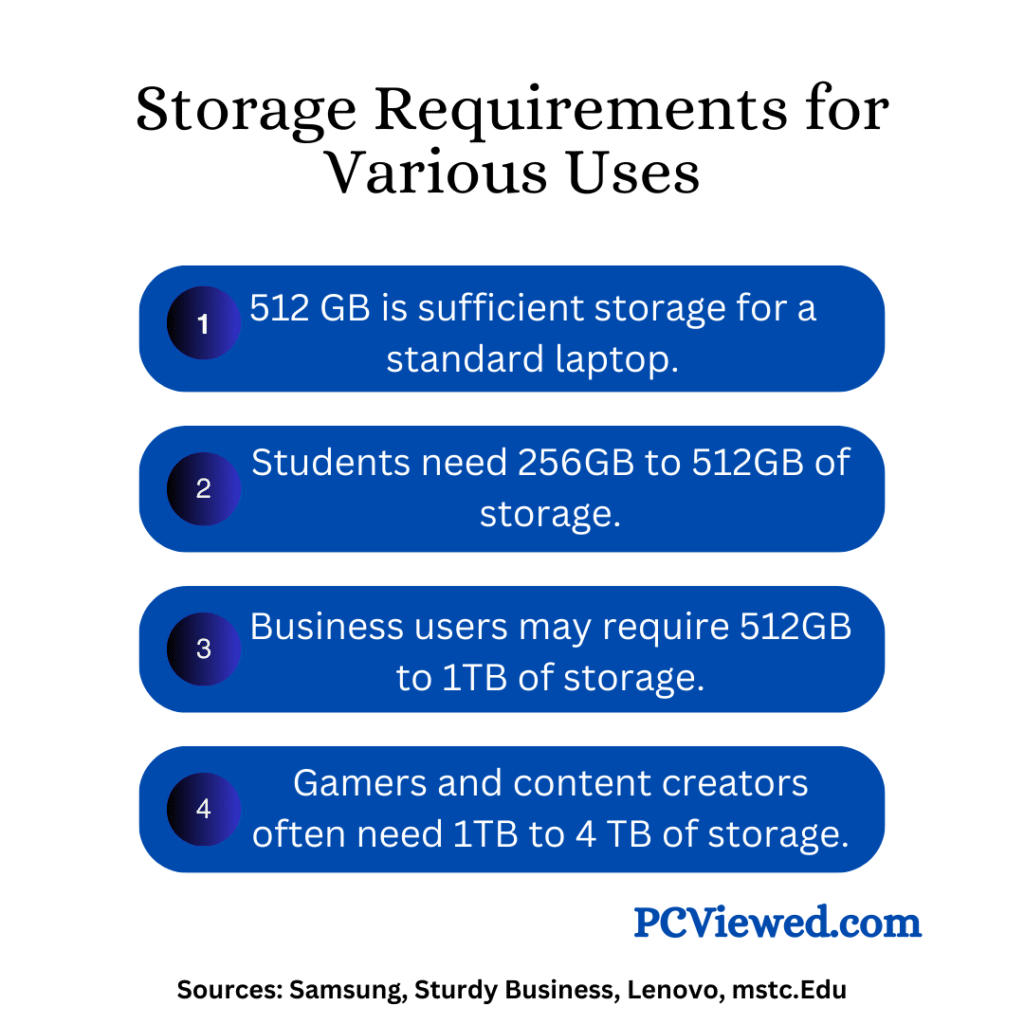
Now, let’s discuss, by category, how much storage different types of laptop users generally need.
The following suggestions should be good because people within the same category usually have similar habits and use similar apps. For example, a student might use Zoom, Skype, and occasionally download a few games or movies, while a working professional is more likely to keep professional apps on their laptop.
Storage needed for Student/college laptops:
The amount of storage a student needs depends on what they’re studying and which apps they have to install on the computer.
Often, 256GB to 512GB is enough for most high school students.
College students might need more, depending on their major.
Majors that use small files, like essays and assignments, can do well with 256GB to 512 GB.
Majors in fields such as computer science, engineering, art/media will require more room because their files are larger and they require more programs to function.
Here is an example of storage needed for a typical student using common apps:
- Windows 10 or 11: 64 GB minimum Windows 11 device capacity (Microsoft specifications), not the installed OS size
- Microsoft Office Suite (Word, Excel, PowerPoint): 3-5GB
- Adobe Acrobat Reader: 500MB to 1GB
- Reference Management Software: 100MB to 500MB
- Programming Environments: 200MB to 1GB+
- Statistical Analysis Software: 1-4GB
- Note-taking Apps: 200MB to 500MB
- Mathematical Software: 500MB to 4GB
- Graphic Design Software (Adobe Creative Cloud): 2-10GB+ per application
- Language Learning Apps: < 500MB
- Antivirus Software: 500MB to 1GB
- Web Browsers: 500MB to 1GB each (assuming 3 browsers)
- Collaboration Tools: 100MB to 500MB each (assuming 3 tools)
- Other miscellaneous software: Variable, but estimated at 1-2GB
The individual app figures are only illustrative; Windows 11’s 64 GB minimum device capacity is not an exact installed OS size, so these values should not be treated as precise measurements.
A planning allowance around 75–100 GB may cover Windows and basic software, depending on the installation and applications.
So, 256GB to 512GB of storage will be good enough for typical students.
Storage needed for business laptops:
For business laptops, the amount of storage you need depends on how much work you do. What apps do you use and how much data you have to store.
If your job involves working with big spreadsheets and using many specialized programs, you’ll need a laptop with more storage space.
That’s why you should go for 512GB to 1TB of storage. If you need high performing laptop then you should choose NVMe SSD even with Gen 3 will be fine. NVMe SSDs can deliver considerably higher sequential speeds than HDDs, although performance depends on the drive and workload. Fast storage cannot prevent every slowdown caused by the CPU, RAM, or other hardware.
Storage needed for gaming laptops:
Gaming laptops need a lot of space, no question. If you keep a collection of games installed, a 1TB SSD is a practical starting point; lighter gaming needs may fit on 512GB.
If you want several large modern titles installed at once, 2TB or more can be worthwhile. A 2TB SSD helps when you keep many large games installed, but it is not a universal minimum. For example, Cyberpunk 2077 requires an SSD and lists 70GB of available space for Windows.
Storage needed for content creation:
If you want to do demanding tasks on your laptop, such as editing videos or creating 3D graphics, you’ll need a lot of storage.
Apps like Photoshop need plenty of space to work smoothly. And if you have other Adobe apps, like Lightroom or InDesign, they’ll also use up space.
You’ll likely work with many high-resolution images and videos, which take up a huge amount of storage. For example, an hour of high-bitrate 4K footage can use substantial storage, with the exact size depending on codec, frame rate, and compression.
For regular large photo or video projects, 2TB can be useful, while 4TB or more may suit extensive footage libraries; neither is a universal minimum.
For applications like 4k/8K video editing, professional 3d rendering, Gen 4 SSD is highly recommended.
How to Calculate Your Laptop Storage Requirements
On Windows 11, open Settings → System → Storage to see the space currently used by apps, system files, downloads, and other categories. Microsoft explains how to check these categories.
- Measure what you use: Record the storage occupied by your system, apps, documents, and existing games.
- Include upcoming needs: Add space for new courses, work files, games, or media projects.
- Leave space for updates: Allow room for downloads, temporary files, and software growth.
- Choose the next suitable drive size: Compare the resulting need with 256GB, 512GB, 1TB, or a larger capacity.
For example, someone already using 210GB and expecting another 150GB of local files has a better fit with a 512GB drive than with a 256GB drive. This is an illustration, not an estimate of average usage.
Cloud files can also reduce space requirements when set to online-only, but copies saved for offline use still occupy local storage.
What Is the Average Laptop Storage Capacity?
There is no single verified average for every laptop sold or in use. Budget, business, gaming, and workstation models have different configurations. Common options buyers encounter include 256GB, 512GB, and 1TB; higher-capacity models may offer 2TB or more.
A market average is less useful than checking the space consumed by your own applications and files.
Minimum and Maximum Laptop Storage Capacity
Microsoft specifies a 64GB-or-larger storage device for Windows 11. This is a minimum device requirement, not a claim that a Windows installation uses exactly 64GB, nor a sensible capacity recommendation for most new laptops.
There is no universal maximum capacity for every laptop. It depends on the model, its SSD slots or soldered storage, the drives it supports, and options such as external SSDs and HDDs.
Why Does a 512GB SSD Show Less Available Space?
Drive manufacturers typically advertise capacities using decimal units, while operating systems may show a different unit convention. Formatting, system files, and recovery partitions also affect available space. In decimal units, 1TB equals 1,000GB.
Choosing the Right Storage: A Detailed Breakdown
You can’t estimate how much storage you need on your laptop unless you are certain about a few key factors that will impact your storage choices.
Let’s discuss storage types, the files you keep, and your budget in more detail.
Other than price and storage needs, it’s important to understand whether you should go for an SSD or an HDD.
If you want to dive deeper, we’ve discussed both HDDs and SSDs in detail here, but here are the key things that matter when choosing your storage option.
- HDD storage uses mechanical rotating parts, so there’s always a chance of physical damage and that means you could lose your data.
- SSD storage is much faster, so all your important files like the OS, browsers, and apps should be on an SSD. Even a SATA SSD (which is much slower than an NVMe SSD) is still up to 7.5 times faster than an HDD.
- High-performance games, enterprise-level tasks, high-performance computing, and demanding workflows that need maximum speed should always use SSDs, especially NVMe SSD, which can reach speeds of up to 14,000 MB/s on Gen 5.
- For general-purpose laptops used for entertainment, learning, or homeschooling, you can rely on HDD storage or choose a hybrid setup (where you get both storage types to save money).
- For backup purposes, you can also rely on an HDD, unless it’s sensitive data that could be lost or damaged.
With capacity recommendations covered, the next step is choosing a storage type that suits your laptop and your work.
Here is a quick comparison of the main storage types:
| Storage Type | Cost | Speed |
|---|---|---|
| HDD (Hard Disk Drive) | Cheaper | Slower |
| SSD (Solid State Drive) | Pricier | Faster |
Understand Modern Storage Types: HDD vs. SSD
There are two main types of storage used today: the traditional Hard Disk Drive (HDD) and the more advanced Solid-State Drive (SSD). While both offer identical capacities, a 1 TB HDD and a 1 TB SSD store the same amount of data; their performance profiles are drastically different.
According to HP, HDDs typically provide data transfer speeds between 30–150 MB/s, whereas SSDs reach far higher rates,around 500 to 14000 MB/s. This means SSDs enable significantly faster boot times, application loading, and file transfers.
Furthermore, SSDs average 400 MB/s on file transfers compared to about 70 MB/s for HDDs. SSDs also outperform HDDs in random access, averaging times of 0.15 ms versus 4.2 ms. Boot time tests show SSDs start up in approximately 8 seconds, while HDDs take around 30 seconds.
That being said, SSDs are “much faster, more reliable, and longer-lasting,” making them the better choice for high-performance workloads. HDDs remain useful for archiving and bulk storage due to lower cost per gigabyte.
HDD vs SSD – Pros and Cons
Hybrid Solutions:
A hybrid storage solution combines the best of both storage types, by using an SSD for the operating system and frequently accessed applications, and an HDD as cold storage for storing larger files. This budget setup offers a balance between speed and storage capacity.
Your laptop usage:
Let’s talk about how you actually use your laptop, because that alone will shape how much storage you really need.
For most people today, a laptop isn’t a vault for data anymore. It’s an access point. Think about what we use them for: email, browsing, watching Netflix, scrolling social feeds, maybe working on a few documents.
And with the rise of cheap cloud hosting, most of us don’t even keep much stored locally. We stream our shows on Netflix or YouTube, we listen to music on Spotify, and when it comes to work, we rely on tools like Google Docs or Office 365 online.
That shift changes everything. The truth is, many people could survive on surprisingly little storage space. If you fall into that category, then 256GB is usually the sweet spot. Let me explain why.
Windows 11 requires at least a 64GB storage device, according to Microsoft, but that is not how much Windows necessarily occupies after installation. Add in essential apps like antivirus software, a PDF reader, maybe some light coding or educational tools, and you’re still using under 100GB.
That leaves you with more than 150GB free, which is more than enough for documents, photos, and even a few offline videos.
But here’s where the story changes. Content creators, professionals, and gamers live in a very different world. Take video editors, for instance: one hour of high-bitrate 4K footage can take roughly 110GB in some formats, but the actual size depends heavily on the recording settings and compression.
Even at lower resolutions, storage demands are massive; just one minute of uncompressed 1080p 8-bit RGB video takes up about 8GB.
And when dealing with large-scale data, the requirements grow even more. For example, if a fact table contains 10 million rows, it can require around 3GB just to store the references.
Imagine working on a documentary or wedding film; suddenly, even 1TB of storage isn’t enough. Architects and engineers working with CAD files face a similar challenge, with individual projects sometimes weighing several gigabytes.
That’s why professionals in these fields typically need between 1TB and 4TB of fast storage, often SSDs, because cloud storage alone can’t handle the size or speed requirements of their work.
So the takeaway is simple: if you’re a casual user who lives in the cloud, 256GB is plenty. But if you’re a creator or professional, you’re not just buying space; you’re buying the ability to work without compromise.
The types of files you keep:
For most people who use laptops often, it’s good to store important files in cloud storage. This way, you have backups in case something happens to your laptop. But for this to work well, you need a good internet connection. iCloud for Mac and Google Drive for Windows are good choices for saving videos and pictures, and they don’t take up much space on your laptop.
But here’s the shift: if you’re someone who works with large files regularly, cloud storage alone isn’t enough. Let’s take video production as an example. In a high-data-rate 4K workflow, an hour of footage can reach around 110 GB, roughly 2 GB per minute. This is an illustrative rate, not a fixed amount for all 4K video.
If you’re a documentary filmmaker, that’s more than 250GB used up in just two or three sessions. Suddenly, that modest 256GB laptop drive most students get by with feels painfully small.
So, here’s the rule of thumb: if most of your files are photos, documents, and music, lean on the cloud and stick to 256GB or 512GB of local storage. But if you’re dealing with massive video, CAD, or design files, you’re going to want at least 1TB of physical storage. Not for the luxury of “extra space,” but for the speed, stability, and peace of mind that your work won’t grind to a halt.
Your budget:
When you’re picking storage, think about your budget first. It can be pricey to upgrade your computer’s storage. For instance, HDDs usually cost less than SSDs, but they’re slower at reading and writing data. So, it takes a long time to get files from them.
In November 2026, a Seagate BarraCuda 8TB internal HDD is available at $249.99, or about 3.12 cents per GB. The 2TB portable-drive prices below provide another comparison of HDD and SSD costs.
In November 2026, the WD Elements 2TB portable HDD is available at $127.49 (about 6.37 cents per GB) and the Samsung T7 2TB portable SSD at $459.99 (about 23.00 cents per GB).
The SSD costs about 3.6 times as much per gigabyte in this comparison, but offers much faster access to files.
HDDs give you a lot of storage for a good price, so we’re not saying you shouldn’t consider them. But for those watching their budget, a better idea might be to get a laptop with a smaller SSD for your everyday storage needs and then get an external HDD for storing things you don’t use all the time but still want to keep.
This way, you have both lots of space and speed for the things you use regularly.
Frequently Asked Questions About Laptop Storage
How much storage does Windows 11 need?

Microsoft requires a 64GB-or-larger storage device for Windows 11. This does not mean Windows always occupies 64GB after installation. Actual usage varies by device, updates, apps, and recovery files.
How much storage does AutoCAD need?
Autodesk specifies 10GB of disk space for AutoCAD 2027 on Windows and suggests an SSD. Leave additional room for Windows, specialized toolsets, project files, and backups.
How much storage does a gaming PC need?
A 1TB SSD is a practical starting point for many gamers. A 2TB or larger SSD is useful for extensive game libraries, but storage capacity itself does not determine game frame rates.
