
A GPU (Graphics Processing Unit) is an essential part of your computer that processes graphics and produces the images you see on your screen. From displaying your desktop and playing videos to rendering detailed game environments, the GPU handles the visual processing involved.
But that’s not all. A GPU can perform thousands of calculations simultaneously, making it particularly useful for demanding games, video editing, 3D rendering, and even artificial intelligence.
Now imagine spending thousands of dollars on a PC with a powerful processor and plenty of RAM, only to experience poor graphics, low frame rates, or slow rendering because your GPU cannot handle the work.
That’s why choosing the right GPU is just as important as choosing other major PC components.
However, the right GPU doesn’t necessarily mean the most expensive graphics card. It depends on what you do with your computer, the applications and games you use, and the performance you expect from them.
For example, you don’t need the same graphics hardware for browsing, office work, gaming, video editing, engineering, or running AI models. Each activity has different requirements.
A GPU that handles everyday computing effortlessly may struggle with demanding games or complex 3D rendering. Similarly, a GPU designed for high-end gaming isn’t necessarily the best choice for every professional application.
In this guide, we’ll discuss how to choose the right GPU for your PC based on your activities, software requirements, graphics memory, performance, and compatibility, without spending money on capabilities you won’t use.
Which GPU Do You Need for Your Activities?
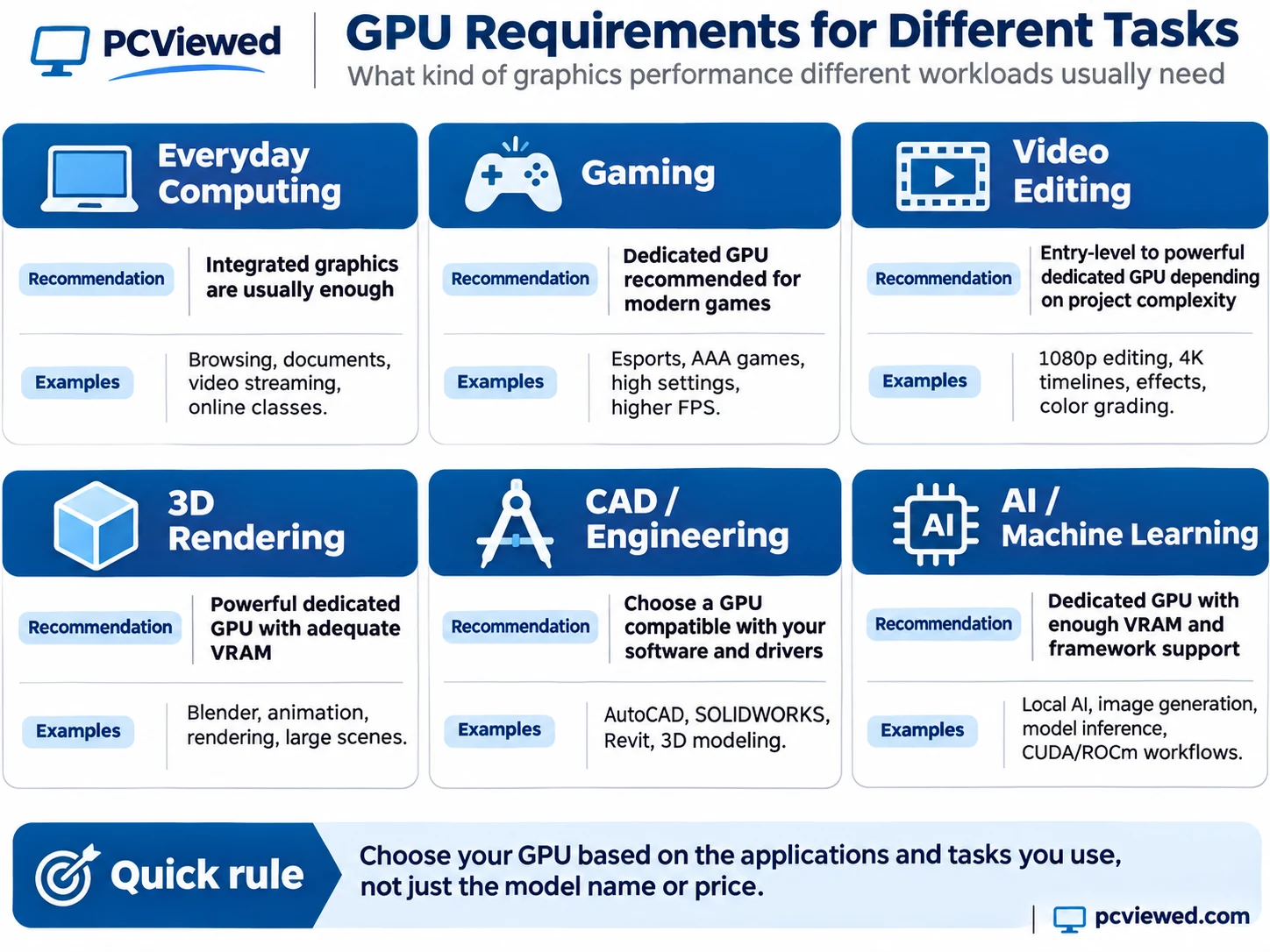
Different applications use graphics hardware differently.
Some need little more than basic display acceleration, while others rely heavily on GPU processing power and graphics memory.
Everyday Computing, Studying, and Office Work
If you mainly use your computer for browsing, watching videos, attending online classes, preparing documents, spreadsheets, or video meetings, you generally do not need a dedicated graphics card.
All modern integrated graphics can easily handle these activities because they include the hardware needed for desktop graphics, video playback, and everyday display operations.
For example, integrated graphics in a suitable modern Intel Core or AMD Ryzen processor can handle:
- Microsoft Word, Excel, and PowerPoint
- Google Docs and Google Sheets
- Web browsing and online research
- Zoom, Microsoft Teams, and Google Meet
- YouTube, Netflix, and other video streaming
- Basic photo editing and presentations
For these activities, processor performance, sufficient system RAM, and SSD storage generally matter more than buying a powerful dedicated GPU.
PC Gaming and Different Types of Games
Gaming is one of the most common reasons people buy a dedicated GPU.
However, not every game needs an expensive graphics card.
Games such as Valorant, League of Legends, Minecraft, and Counter-Strike 2 can run on relatively modest hardware, depending on the settings and performance targets.
More demanding games, especially those using detailed environments, advanced lighting, and high-resolution textures, require greater GPU processing power.
For gaming, consider three things:
- Which games you want to play.
- The resolution of your monitor.
- The frame rate and graphics quality you expect.
For example, someone playing Fortnite at reduced settings has different graphics requirements from someone playing Cyberpunk 2077 with demanding ray-tracing settings.
Even within the same game, the GPU requirements can change significantly when you move from lower settings to the highest graphics preset.
Epic Games’ Fortnite system requirements illustrate this difference. Its recommended configuration lists a GTX 960 or equivalent with 2GB VRAM, while its Epic-quality preset lists an RTX 3070 or RX 6700 XT with at least 8GB VRAM.
This is why we recommend using the requirements of your actual games as the starting point rather than buying a GPU based only on its series or price.
Video Editing, Streaming, and Graphic Design
Creative applications vary considerably in how much GPU power they use.
For basic image editing, illustrations, social media graphics, and light video editing, a capable integrated GPU or entry-level dedicated GPU can be sufficient.
However, a more powerful graphics card becomes useful when you work with:
- High-resolution video footage
- Multiple video tracks and effects
- Color grading
- Motion graphics
- GPU-accelerated transitions
- Noise reduction and AI effects
- Live streaming while gaming
For instance, Adobe recommends 8GB of GPU memory for its current Windows Premiere configuration, while its minimum GPU requirement is 4GB.
The GPU also affects video encoding and decoding, although the processor, supported codecs, storage, and system memory contribute to editing performance.
For graphic design software such as Photoshop or Illustrator, the requirements are usually less demanding than complex 3D rendering or heavy GPU effects.
3D Modeling, Animation, and Rendering
If you use Blender, Cinema 4D, Autodesk Maya, or another 3D application, your GPU requirements depend on how you create and render your projects.
For example, creating relatively simple 3D models is different from rendering complex scenes with detailed textures, lighting, reflections, and animations.
There are two important workloads:
Viewport performance: This determines how smoothly you can navigate, rotate, and edit models while working.
Rendering performance: This determines how quickly the system processes a completed scene or animation when using GPU-based rendering.
Blender’s Cycles renderer supports GPU rendering through technologies including NVIDIA CUDA and OptiX, AMD HIP, Intel oneAPI, and Apple Metal.
According to Blender’s official hardware requirements, 8GB VRAM is its recommended GPU-memory specification.
For larger scenes, greater VRAM capacity becomes valuable because models, textures, and rendering data require graphics memory.
If you spend considerable time rendering, a faster compatible GPU can save substantial processing time. If you mainly create simple models, you should prioritize adequate viewport performance without paying for rendering power you rarely use.
Engineering, CAD, and Architecture
Engineering and architectural software introduces another important consideration: graphics-card compatibility and driver certification.
Applications such as AutoCAD, SOLIDWORKS, Revit, and professional 3D design tools do not all use the GPU in the same way.
For example, basic 2D drafting generally requires much less graphics processing than working with large 3D assemblies, detailed architectural models, or complex visualizations.
Autodesk lists a basic 2GB GPU requirement for AutoCAD 2026 and considerably higher graphics specifications for demanding workloads involving large datasets, point clouds, and 3D modeling.
See Autodesk’s AutoCAD system requirements.
SOLIDWORKS also emphasizes certified graphics cards and drivers in its official system requirements.
For professional CAD work, we recommend prioritizing the GPU models and drivers supported by your main application. A high-end gaming GPU is not automatically the best professional graphics solution.
Programming, Machine Learning, and Local AI
Most everyday programming does not require a powerful GPU.
Writing code, developing websites, working with databases, and running typical development tools depend more on the processor, RAM, and storage.
GPU requirements become much more important when your programming involves:
- Training machine learning models
- Running local language models
- AI image generation
- Deep learning experiments
- GPU-accelerated scientific computing
- Computer vision
- Processing large datasets with GPU-supported libraries
In these workloads, GPU processing capability, available VRAM, and software framework support determine what you can run efficiently.
For instance, NVIDIA GPUs provide CUDA support, which is widely used in GPU-accelerated AI software.
AMD also supports AI development through ROCm on supported graphics cards and platforms. Apple silicon provides another option through applications and frameworks that use Metal.
If you are buying a GPU for local AI, start with the model or AI framework you intend to use.
Some models can run with relatively little graphics memory when quantized, while larger models require substantially more memory or a different computing setup.
Integrated vs. Dedicated GPU: Which Do You Need?
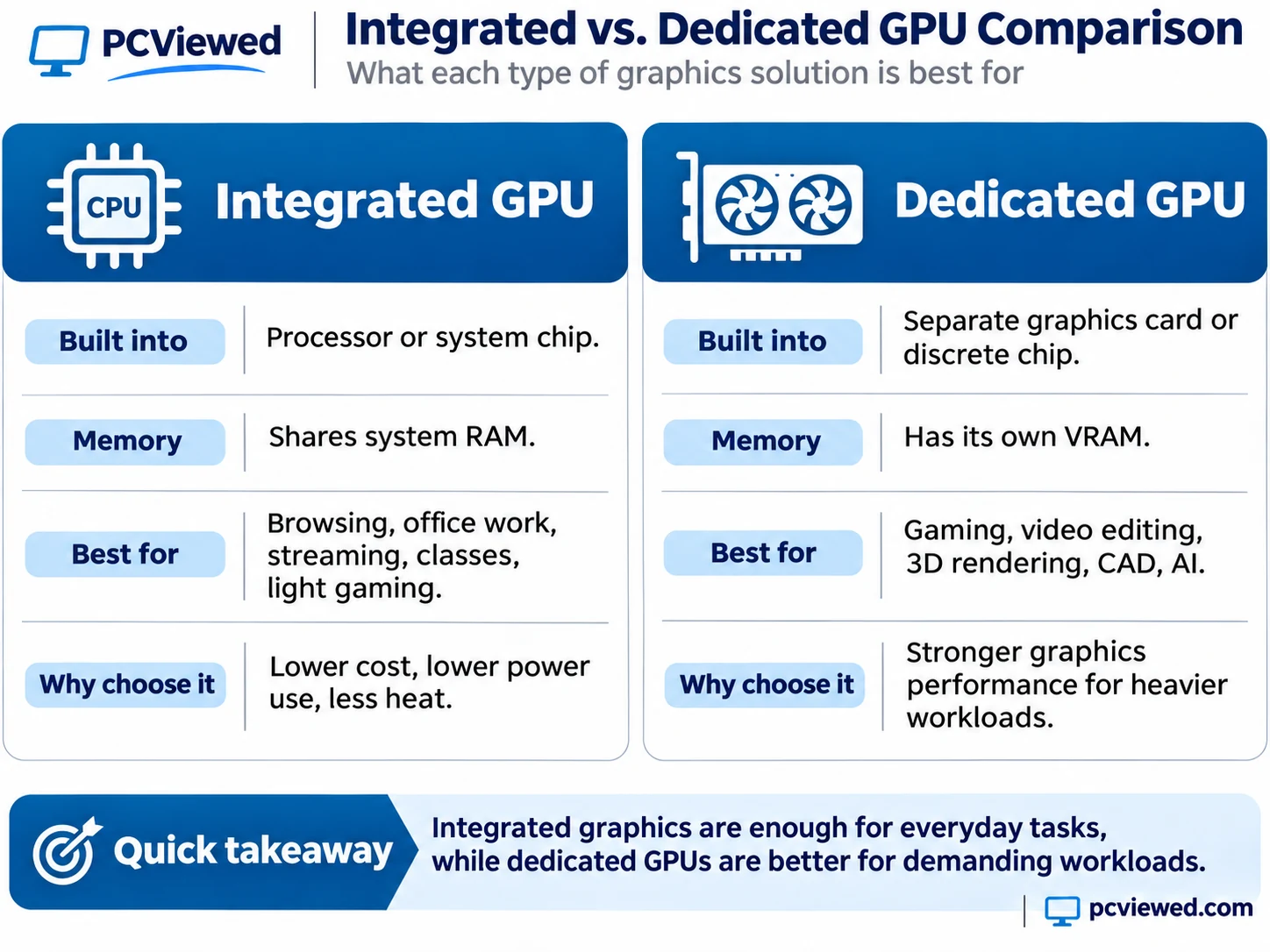
Integrated and dedicated graphics are two different ways of providing GPU processing power.
An integrated GPU is built into the processor or system chip and generally shares system memory.
A dedicated GPU is a separate graphics processor, normally with its own graphics memory and greater power and cooling requirements.
Choose integrated graphics if your main activities include browsing, studying, office work, video calls, streaming, basic photo editing, and light gaming.
Modern integrated GPUs are capable of handling these tasks without requiring a separate graphics card. They also help reduce cost, power consumption, and system complexity.
Choose dedicated graphics if you regularly play demanding games, render complex 3D scenes, edit GPU-intensive videos, work on advanced graphics projects, or run AI applications that benefit from dedicated GPU acceleration.
Dedicated GPUs offer more graphics processing capability and often include their own VRAM, making them better suited to sustained graphics-heavy workloads.
However, buying a dedicated GPU does not automatically improve every task. An expensive graphics card adds little benefit to ordinary document editing or browsing.
For laptops, there is an additional consideration: dedicated graphics consume power and produce heat. If battery life and portability matter more than graphics performance, integrated graphics can be the more suitable option.
How Much VRAM Do You Need?
Video RAM, or VRAM, is memory used by the GPU to store data needed for graphics and GPU computing.
This can include textures, frame buffers, 3D models, rendering data, and AI model information.
The amount of VRAM you need depends on your applications, resolution, graphics settings, and workload complexity.
4GB vs. 8GB vs. 12GB vs. 16GB vs. 24GB VRAM
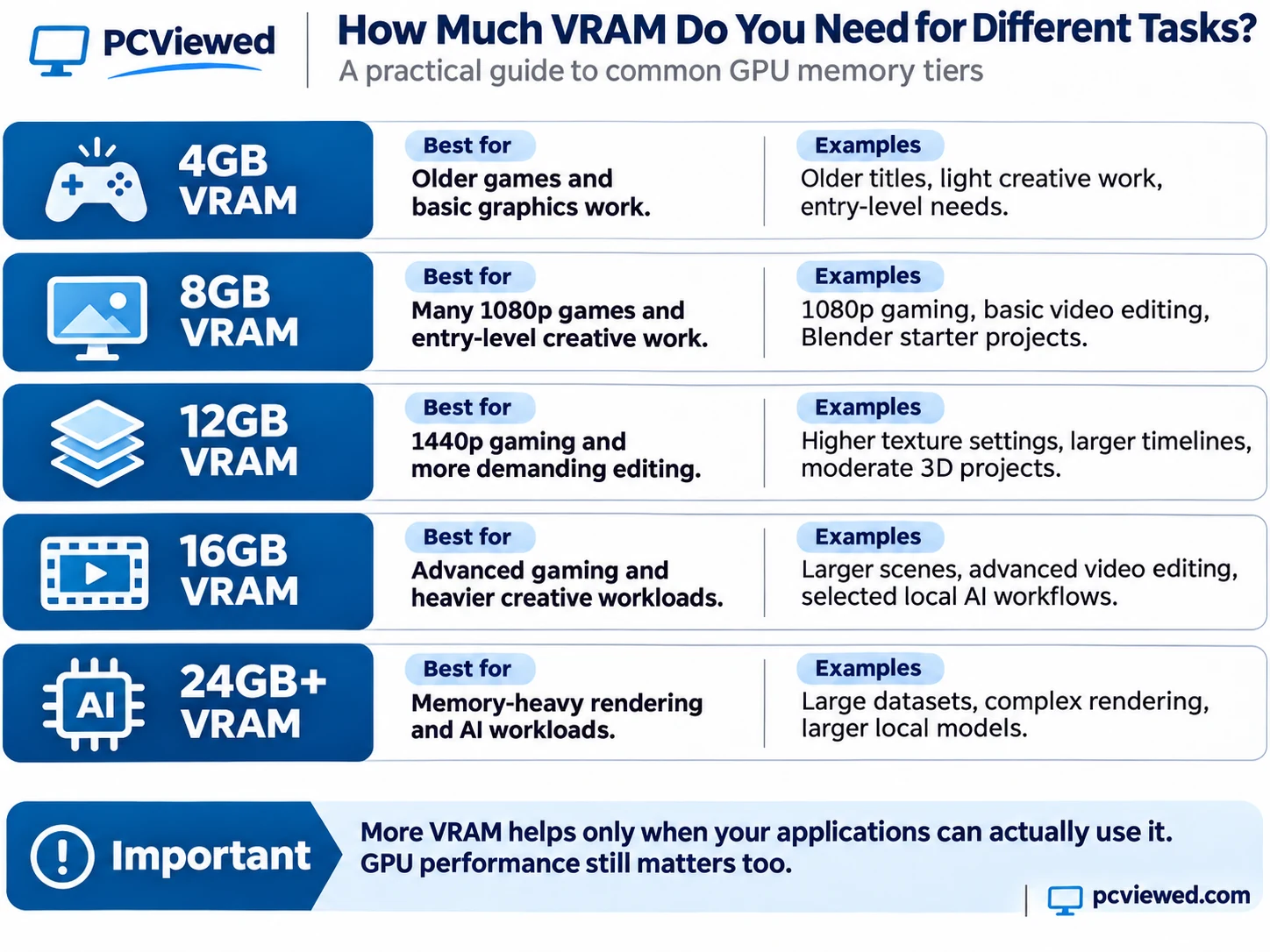
These capacities provide useful starting points for choosing a dedicated graphics card.
4GB VRAM is suitable for older or less demanding games, basic graphics workloads, and applications with modest GPU-memory requirements. Adobe Premiere, for example, lists 4GB as a minimum for supported Windows GPUs.
8GB VRAM is suitable for many 1080p gaming systems and entry-level creative work. It also meets the current recommended GPU-memory specification for Adobe Premiere and Blender.
12GB VRAM is worth considering for 1440p gaming, higher texture settings, video editing, and moderately demanding 3D workloads.
16GB VRAM is a strong option for graphics-intensive gaming, advanced video editing, larger 3D scenes, and selected local AI workloads.
24GB VRAM or more is primarily valuable for workloads that can use large amounts of GPU memory, including complex rendering, large datasets, and memory-intensive AI models.
VRAM vs. System RAM
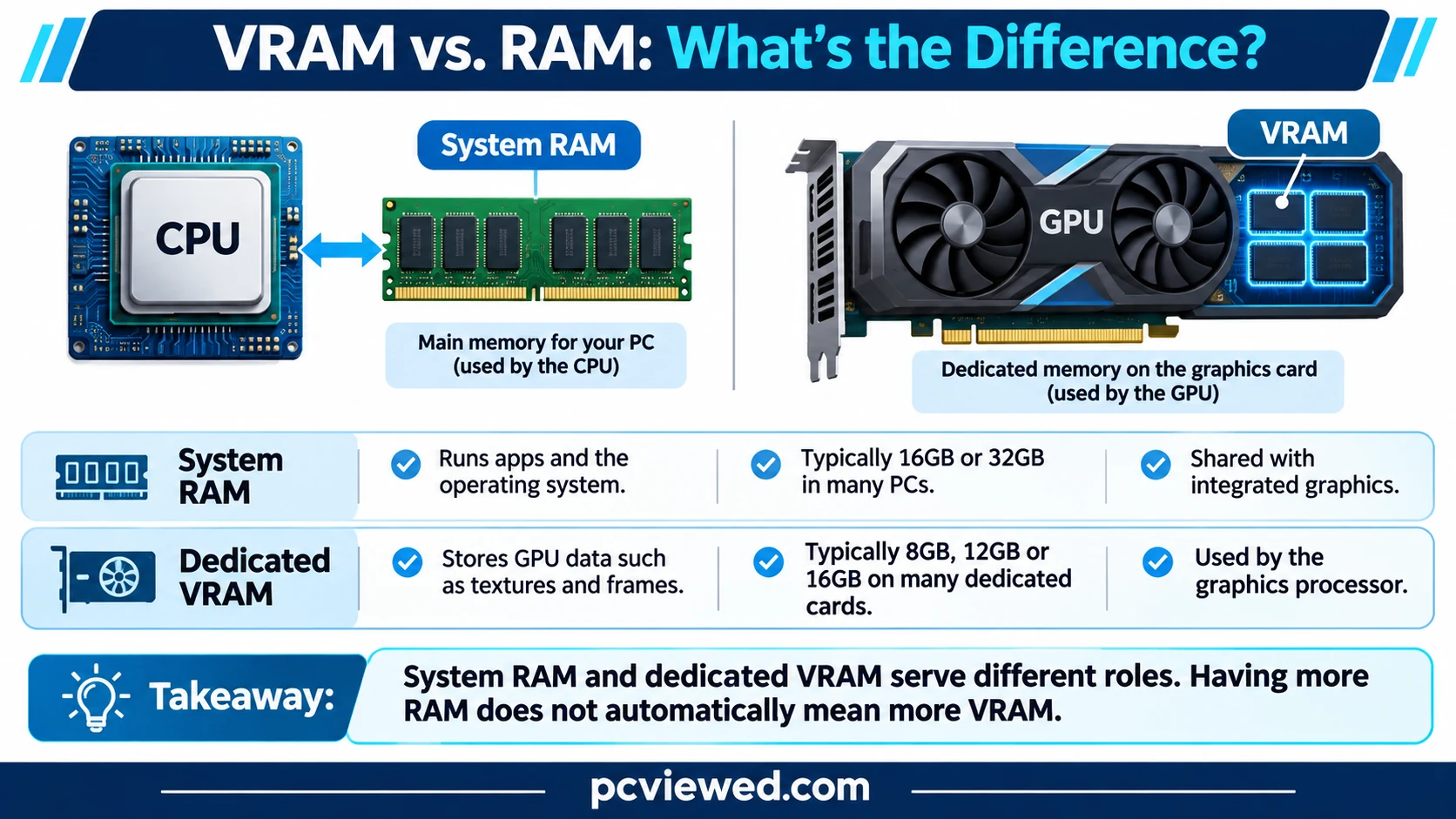
VRAM and system RAM are not interchangeable specifications.
System RAM supports the operating system, applications, and general processing tasks. On the other hand, dedicated VRAM serves the graphics processor.
For example, a PC with 32GB system RAM and an 8GB dedicated GPU does not have 40GB of dedicated graphics memory.
Integrated graphics generally use shared system memory, while Apple silicon uses a unified memory architecture shared by the CPU and GPU.
How to Choose a GPU for Gaming
For gaming, choose your GPU around the games you play and the performance you want on your monitor.
A graphics card suitable for competitive gaming at 1080p may not deliver the same experience when running graphically demanding games at 4K.
GPU Requirements for 1080p, 1440p, and 4K
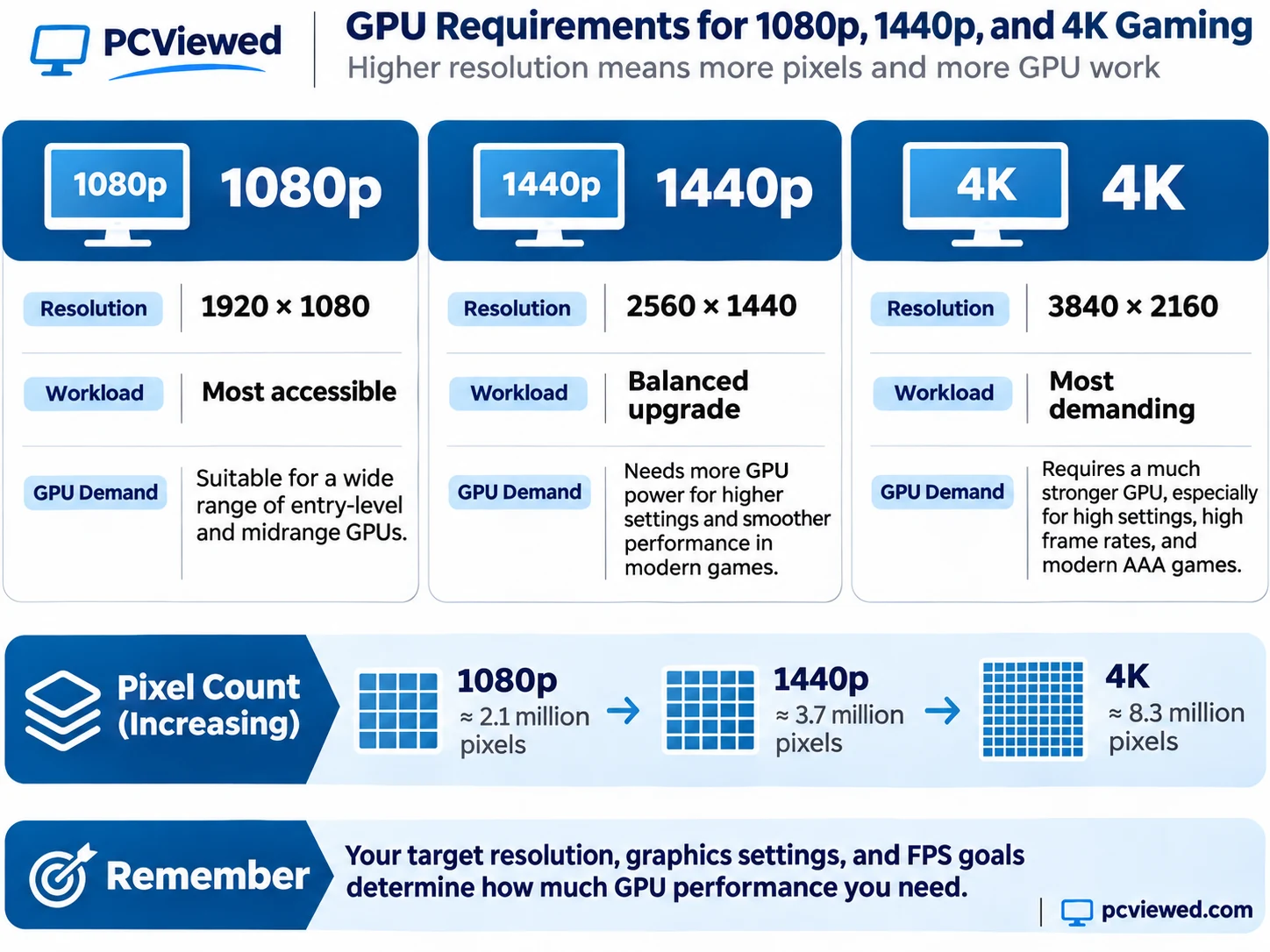
1080p gaming: This resolution is suitable for a wide range of entry-level and midrange dedicated GPUs. Less demanding games may also run well on capable integrated graphics.
If you mainly play esports games, prioritize a GPU that delivers consistently high frame rates in those titles.
1440p gaming: Moving to 1440p increases the graphics workload because the GPU must process more pixels. A capable midrange or higher-performance GPU is generally a better choice, particularly for modern AAA games at higher settings.
4K gaming: Running games at 4K places substantially greater demands on the GPU. High-performance graphics cards become more useful, especially when you want high-quality textures, advanced lighting, and smooth frame rates.
For perspective, 4K contains four times as many pixels as 1080p. This increases the amount of work involved in rendering each frame, although actual performance changes also depend on the game and settings.
FPS, Refresh Rate, and Graphics Settings
Frame rate, measured in frames per second (FPS), describes how many frames the GPU produces each second.
Monitor refresh rate, measured in hertz (Hz), describes how many times the monitor can refresh its image each second.
A 144Hz monitor can display up to 144 distinct frames per second, making high frame rates particularly useful in fast-paced games.
For competitive gaming, higher and more consistent frame rates help reduce the delay between actions and their visible results.
However, for story-driven games, you may prefer higher image quality at a lower frame rate.
Graphics settings also affect GPU requirements. Increasing texture quality, shadow detail, render resolution, and lighting effects can substantially increase graphics processing or memory demand.
Ray Tracing, Upscaling, and Frame Generation
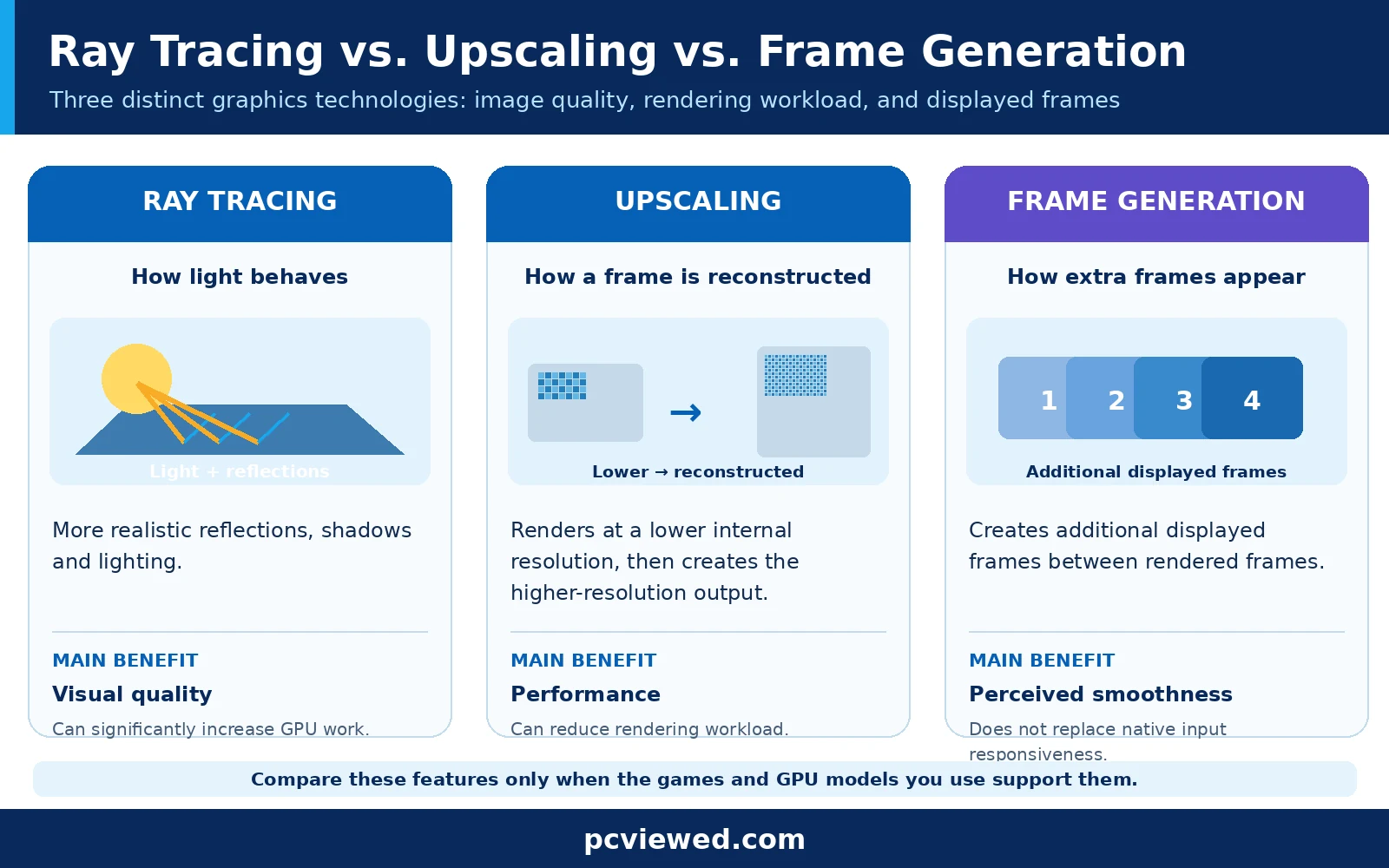
Modern graphics cards include technologies that change how games render images.
Ray tracing simulates the behavior of light to produce more realistic reflections, shadows, and lighting. It can significantly increase GPU processing requirements.
Upscaling allows a game to render internally at a lower resolution and reconstruct an image for a higher-resolution display. This can improve performance because fewer pixels are rendered directly.
Frame generation creates additional displayed frames between traditionally rendered frames.
NVIDIA DLSS, AMD FSR, and Intel XeSS offer combinations of these capabilities, depending on the GPU, technology version, and game.
How to Choose a GPU for Professional Software
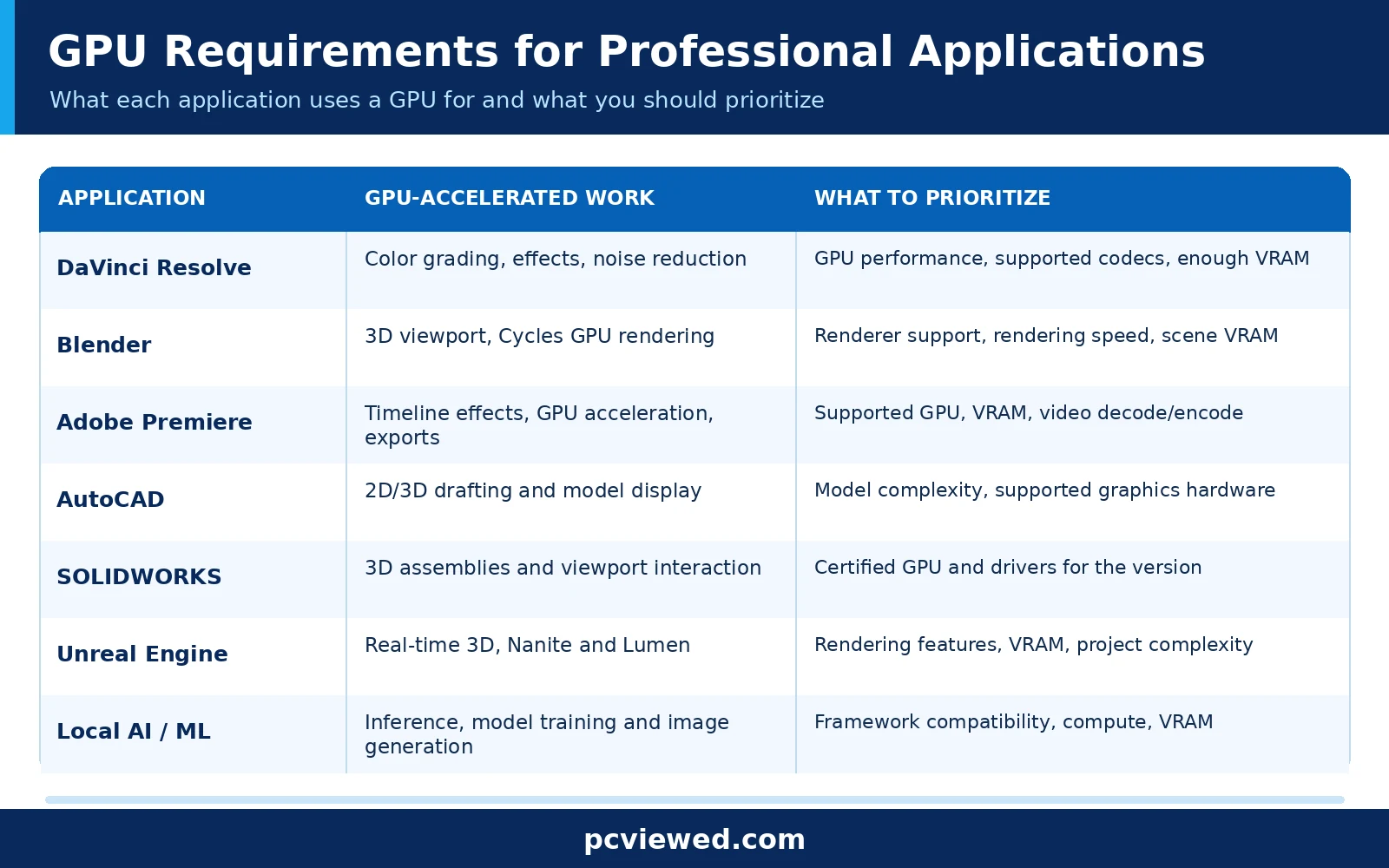
Professional applications do not use GPUs identically. The right choice depends on how your main software uses graphics processing.
For DaVinci Resolve, GPU performance is particularly important for demanding effects, noise reduction, color processing, and some AI-assisted features. Larger or more complex projects can benefit from greater graphics memory and processing capability.
For Blender, consider rendering performance, GPU backend support, and the memory required by your scenes. A graphics card that performs well with the rendering engine you use is more valuable than one selected only from its gaming results.
For AutoCAD, start with the complexity of your projects. As said earlier, basic 2D drafting has different graphics requirements from large 3D models and point-cloud workflows.
For SOLIDWORKS, graphics certification deserves special attention because the software vendor specifies certified cards and drivers for its supported graphics configurations.
For Unreal Engine, graphics requirements depend on whether you are building relatively simple projects or using demanding real-time rendering features such as Nanite and Lumen.
For AI and machine learning, prioritize GPU memory, compute performance, and support for your chosen framework. CUDA, ROCm, and other GPU computing environments are not interchangeable across every graphics card.
We can conclude that a useful way to compare professional GPUs is to look at application-specific benchmark results.
For example, Puget Systems’ content-creation benchmarks examine workloads in Premiere and DaVinci Resolve instead of relying on general gaming performance.
If you use multiple professional applications, identify the most demanding one and choose a GPU that supports all of them.
NVIDIA vs. AMD vs. Intel: Which GPU Should You Choose?
NVIDIA, AMD, and Intel all offer graphics hardware for different computing needs.
NVIDIA GeForce and professional RTX GPUs are worth considering for gaming, 3D rendering, and GPU-accelerated creative or AI work.
NVIDIA provides DLSS and ray-tracing technologies for supported games, along with CUDA acceleration used by many professional and AI applications.
If your software specifically relies on CUDA, a supported NVIDIA GPU is a good choice because CUDA is NVIDIA’s computing platform.
AMD Radeon GPUs are another strong option for gaming and supported creative workloads.
Radeon graphics support technologies such as AMD FSR, while compatible AMD GPUs can accelerate selected professional and AI applications through supported software environments, including ROCm.
Intel graphics include integrated solutions and dedicated Intel Arc GPUs.
Modern Intel integrated graphics are useful for everyday computing, multimedia work, and lighter gaming. However, dedicated Arc GPUs expand Intel’s options for gaming and selected creative applications.
Intel XeSS also provides upscaling and other supported graphics technologies.
Which GPU Specifications Actually Matter?
When comparing graphics cards, you will encounter specifications such as clock speed, processing cores, memory bandwidth, and power consumption.
GPU Architecture and Generation
A GPU’s architecture determines how its processing hardware is designed and which capabilities it supports.
A newer generation may introduce improvements in processing efficiency, ray tracing, AI acceleration, memory handling, and video encoding.
However, generation numbers do not establish a universal performance ranking.
For example, a high-end graphics card from an earlier generation can outperform an entry-level card from a newer generation.
Clock Speed, Cores, and Memory Bandwidth
GPU clock speed means how quickly parts of the graphics processor operate.
Processing cores perform the calculations used in graphics and GPU-computing workloads.
Memory bandwidth measures how quickly data can move between the GPU and its graphics memory.
Each can affect performance, but their importance changes with architecture and workload.
GPU Power Consumption and Cooling
Power consumption determines how much electrical power a GPU requires and how much heat its cooling system must manage.
Higher-performance desktop graphics cards often consume substantially more power than entry-level models.
This affects the power supply, case airflow, noise level, and total running cost.
For laptops, graphics power limits are particularly important because manufacturers configure GPUs within different power and thermal limits.
Two laptops carrying the same GPU name can deliver different performance because their power limits and cooling systems differ.
How to Check GPU Compatibility With Your PC
Before buying a dedicated graphics card, make sure your computer can support it electrically, physically, and through its software.
This is particularly important when upgrading an existing desktop PC.
CPU and GPU Balance
The CPU prepares instructions and handles many tasks that support graphics processing.
If the processor cannot keep up with the GPU, the graphics card may not reach its full performance potential.
This is commonly called a CPU bottleneck.
For example, competitive gaming at very high FPS can place substantial demands on the processor, particularly at lower resolutions.
At higher resolutions and demanding graphics settings, GPU processing power usually becomes more important.
Motherboard, Power Supply, and Case Compatibility
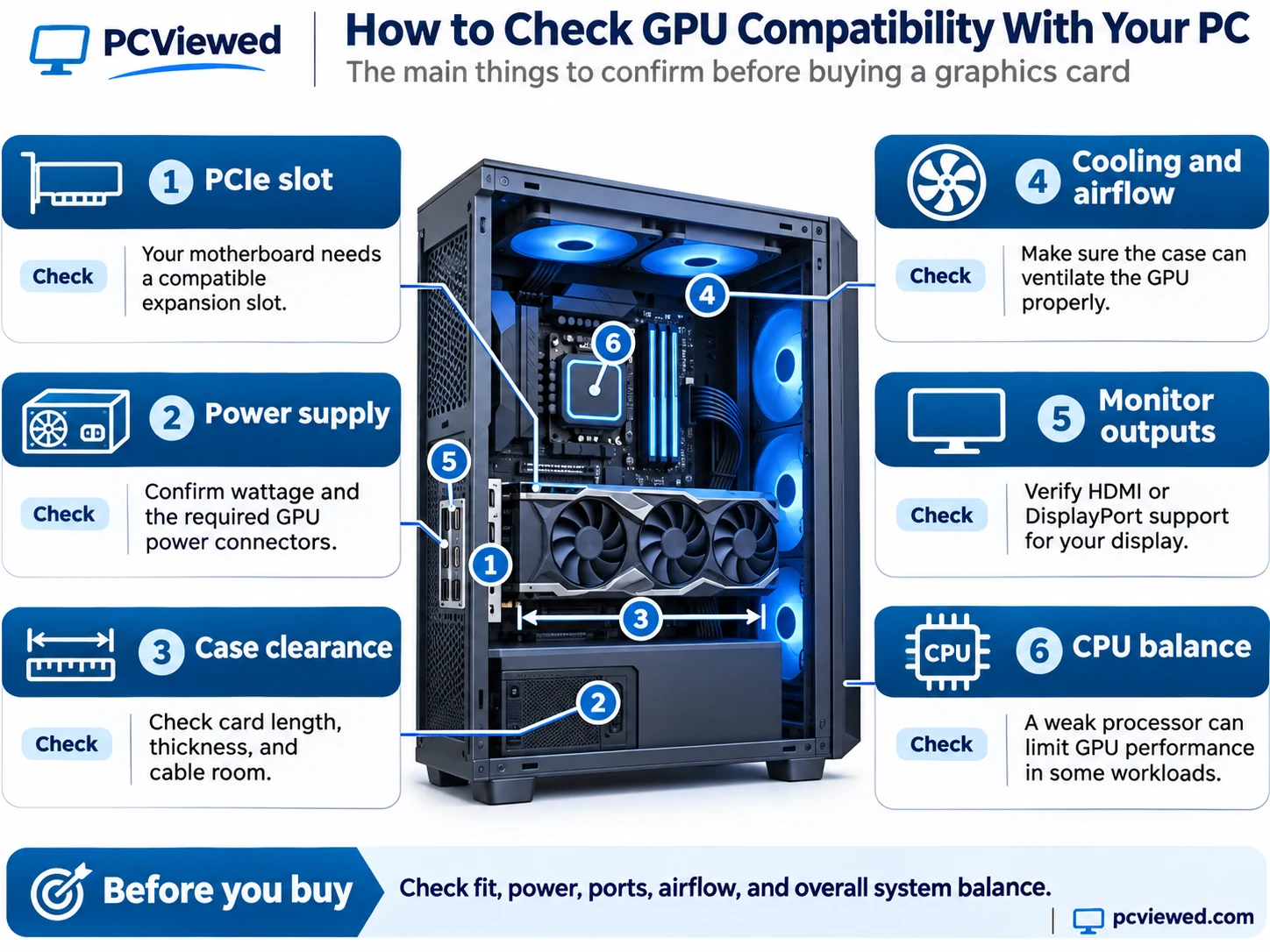
A desktop GPU normally uses a PCI Express expansion slot on the motherboard.
Most modern consumer graphics cards use PCIe, and compatible generations can operate together, although some combinations may have bandwidth limitations.
You also need to consider the following:
Power supply: The PSU must provide sufficient power for the entire computer, including the GPU. Its connectors must also match the card’s requirements.
Case dimensions: The card must fit inside the case, with enough clearance for its length, thickness, power cables, and airflow.
Cooling: The case should provide adequate ventilation so the GPU can maintain performance during sustained workloads.
Monitor connections: The graphics card needs suitable HDMI or DisplayPort connectivity for your intended monitor resolution and refresh rate.
A graphics card that technically fits into a motherboard is not necessarily a suitable upgrade if the PSU, case, or cooling system cannot support it.
Laptop GPU Limitations
Choosing a laptop GPU is different from buying a graphics card for a desktop.
In most laptops, the GPU is integrated into the system’s hardware design and cannot be replaced like a standard desktop graphics card.
Its performance also depends on the laptop’s cooling solution, GPU power configuration, and system design.
For example, two laptops with the same GeForce RTX GPU designation can deliver different gaming and rendering performance.
If you are buying a laptop for demanding graphics work, consider the complete laptop configuration, including its processor, RAM, display, cooling, and sustained GPU performance.
Battery operation can also reduce performance because laptops often limit GPU power when disconnected from external power.
How to Compare GPU Performance Using Benchmarks
Benchmarks help you understand how graphics cards perform in actual workloads.
However, a benchmark is useful only when it measures something relevant to your needs.
For gaming, compare GPUs using:
- The same games
- The same resolution
- Comparable graphics settings
- Average FPS and low-frame-rate results
- Native rendering and upscaling results separately
- Ray-tracing performance where relevant
For example, if you primarily play at 1440p, a benchmark showing 1440p results is more useful than one showing only 1080p performance.
Average FPS describes overall performance, while low-frame-rate results help reveal inconsistent frame delivery and noticeable slowdowns.
For professional work, use benchmarks from your main applications.
A graphics card that ranks highly in gaming does not necessarily rank equally in Blender rendering, Premiere exports, or AI workloads.
Consider the specific task tested. Even within video editing, GPU effects, decoding, rendering, and exporting can respond differently to the same hardware.
Benchmarks from independent testers are especially valuable when they describe the complete test configuration and software versions.
If two GPUs produce similar results in the applications you use, the less expensive option may offer better value, provided it meets your VRAM, software, and connectivity requirements.
How Much Should You Spend on a GPU?
The amount you should spend depends on the workload you want the GPU to handle.
For everyday computing and office work, a separate graphics card is usually unnecessary. Spending that money on a better processor, more RAM, or a suitable display can deliver greater practical value.
For casual and 1080p gaming, an affordable dedicated GPU can be sufficient when its performance meets your preferred games and settings.
For 1440p gaming and creative work, a capable midrange GPU often provides a useful balance between performance, memory, and price.
For 4K gaming, demanding 3D rendering, or heavier professional workloads, more powerful GPUs become valuable because these activities can use their additional processing capacity.
For local AI and memory-intensive computing, graphics memory and software support may justify spending more on a GPU that accommodates larger workloads.
Common Mistakes When Choosing a Graphics Card
Buying a GPU based only on VRAM: More graphics memory is useful when an application needs it, but VRAM capacity alone does not determine performance.
Comparing only GPU clock speeds or core counts: Different architectures process workloads differently. Actual benchmarks provide a more useful comparison.
Ignoring software compatibility: Professional applications, GPU renderers, and AI frameworks may require particular graphics technologies or supported drivers.
Choosing a GPU without considering the CPU: An underpowered processor can limit gaming performance, particularly when targeting high frame rates.
Ignoring power and cooling requirements: A desktop graphics card needs adequate power, physical clearance, and ventilation.
Assuming laptop and desktop GPUs perform identically: Laptop graphics performance depends heavily on power limits and cooling, even when the GPU names are similar.
Buying for maximum settings rather than actual use: Many users can save money by selecting a GPU that comfortably handles their preferred resolution and applications instead of pursuing the highest possible performance.
Frequently Asked Questions
Is 8GB VRAM Enough for Gaming?
Yes, 8GB VRAM is sufficient for many games, particularly at 1080p with appropriate graphics settings.
Some demanding modern games can use more graphics memory, especially at higher resolutions or with high-resolution textures and advanced graphics effects.
Is 12GB or 16GB VRAM Better?
16GB provides more graphics-memory capacity, making it useful for workloads that exceed 12GB. But 16GB isn’t necessarily better just because of it.
A faster 12GB GPU can perform better in applications that fit comfortably within its available memory.
Can I Use a Gaming GPU for CAD and Engineering?
Yes, gaming GPUs can run many CAD and engineering applications.
However, applications such as SOLIDWORKS emphasize certified graphics hardware and drivers for supported professional configurations.
Which GPU Is Best for AI and Machine Learning?
The right AI GPU depends on the models and frameworks you intend to use.
NVIDIA is a good option for CUDA-based workloads. Supported AMD hardware also provides GPU acceleration through ROCm, while other platforms offer their own acceleration environments.
Can I Upgrade My Laptop GPU?
Most modern laptops do not support replacing the internal dedicated GPU.
How Do I Know Whether a GPU Is Good Enough for My PC?
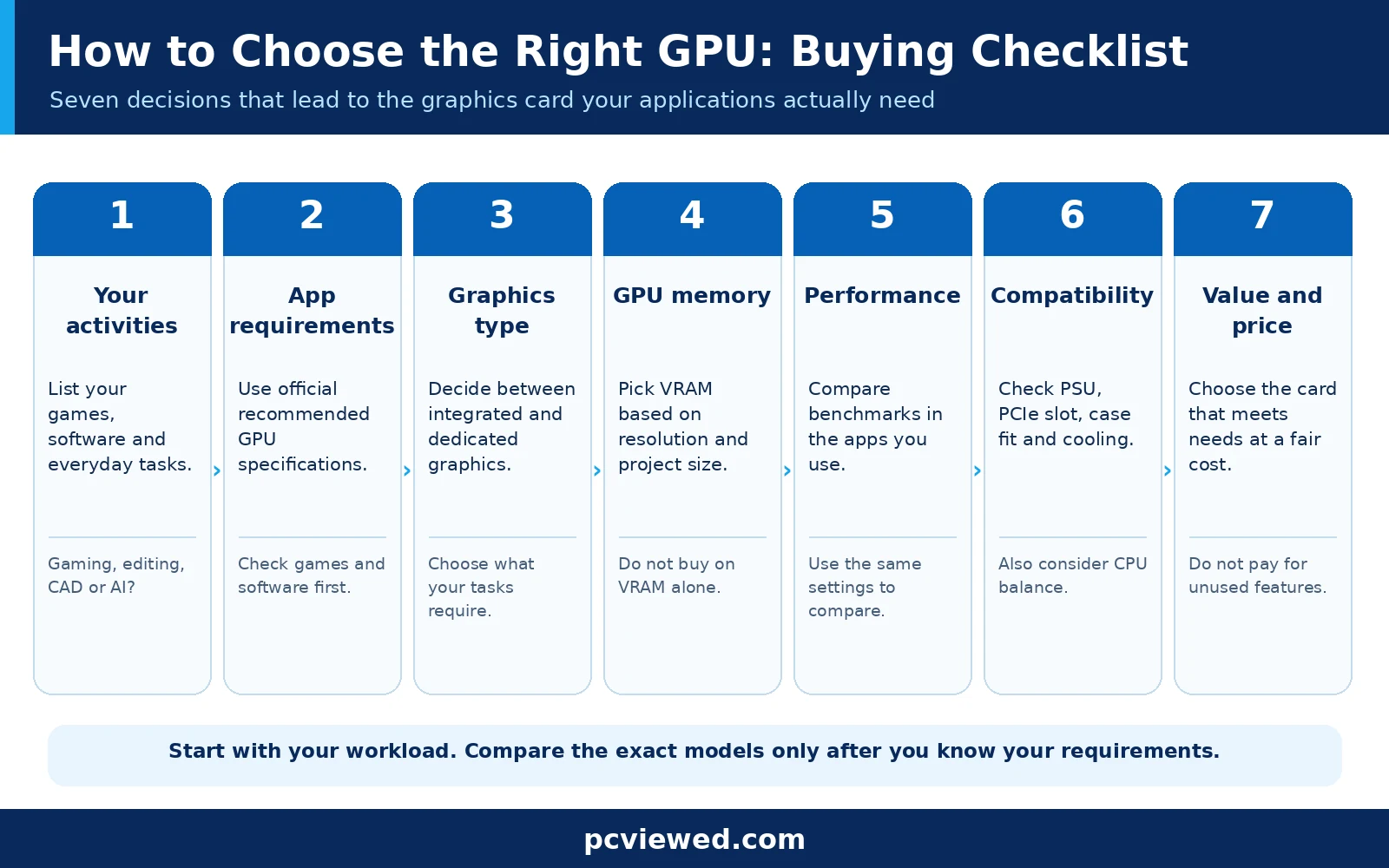
We have already discussed this in detail and we can summarize it as: start with the applications and games you use.
Identify their GPU requirements, determine your preferred resolution or workload size, and compare graphics cards using relevant performance benchmarks.
Then consider VRAM, software compatibility, power requirements, and price.
This approach gives you a much clearer answer than relying on graphics-card names or specifications alone.
