
Having the right computer is no longer a luxury but a ticket to competitiveness. With over 1.5 billion PCs in use worldwide, it is only fair to say businesses everywhere understand the value of having good tech at their beck and call.
Whether you are a startup hustling to make your mark, managing a busy office, or running IT for a big corporation, your computer is not just another gadget; it is the backbone.
You will handle projects, chat with clients, store important data, and execute the plans that will move your business forward. Getting the wrong business machine could slow you down, create endless frustrations, and even bleed your budget in the long run.
This guide’s here to ensure that doesn’t happen to you.
In this guide, you will learn:
- How to assess your business needs: Understanding the specific requirements of your business, from processing power to storage capacity, to ensure the computer fits your operational demands.
- Compatibility: Learn which specifications and OS matter most for business tasks, such as CPU performance, RAM, storage type, and graphics, and how they impact productivity.
- The importance of durability and build quality: Discover why a durable, well-built computer is essential for businesses to avoid frequent repairs and downtime.
- Budget vs. value: Understand how to balance between affordability and long-term value when investing in business computers, including options for scalable hardware.
- Security features for businesses: Learn about essential security features like encryption, biometrics, and secure boot that protect your company’s data from threats.
- Future-proofing your purchase: Tips on choosing systems that can be easily upgraded or remain relevant as your business grows.
- Vendor support and warranties: Why after-sales support and comprehensive warranties matter when selecting business computers.
Types of business computers:
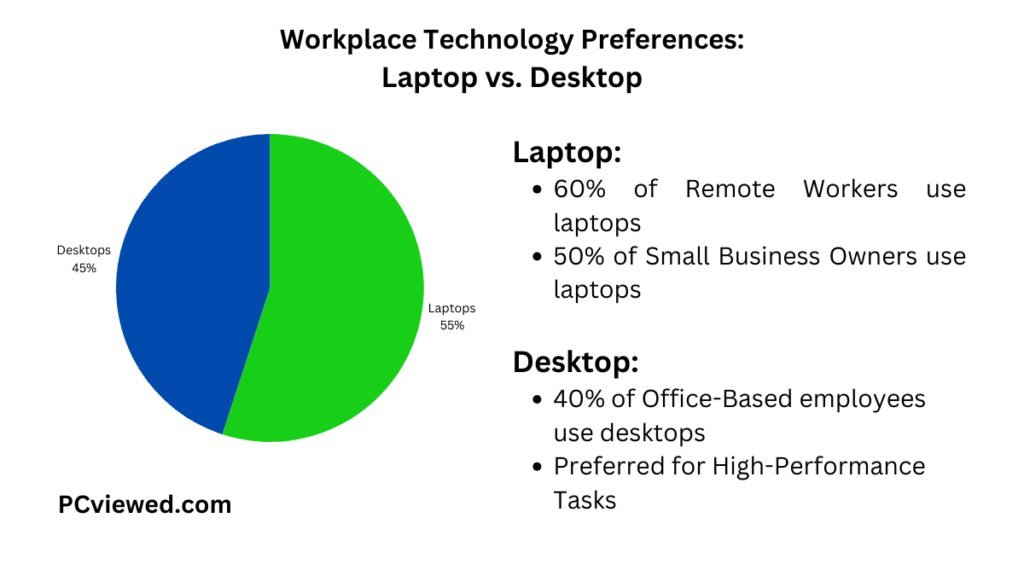
When it comes to selecting a PC for your business, you have four kinds of options: desktops, laptops, all-in-ones, and workstations. Each has its positive and negative points, which should be elaborated on:
Desktops:
For years, desktops have been the backbone of business computing because of their superior power, cooling efficiency, and upgradability compared to portable options.
They also tend to be more cost-effective, often delivering 40–60% more performance per dollar than laptops, according to performance benchmarks from long-time computing practitioners.
However, desktops are stationary, and having to deal with that reality may be a negative factor if one needs flexibility or has a very limited workspace.
You will also need to purchase another monitor, keyboard, and mouse separately, adding extra cost for that but also extra size for your desk.
So, beyond money, what else makes desktops a good choice?
Desktops make the most sense when employees are desk-based and running sustained, heavy workloads. They offer greater thermal headroom and standardized, upgradeable parts (more room for cooling, ATX/micro-ATX form factors, PCIe slots), which supports stable performance over long sessions and easier lifecycle upgrades.
Laptops
Business laptops are super popular, and pretty easy to see why. The biggest and best perk of a laptop is its portability.
With a laptop, your office can be anywhere—whether that’s a coffee shop, an airport, or your living room. This flexibility is invaluable for business owners and employees who travel often or work remotely.
These machines do come in many sizes and configurations; hence, you can choose between ultra-portable models, which are light enough to be carried everywhere, and traditional laptops, with larger screens and more power.
However, such portability comes with trade-offs: generally, less upgradability compared to desktops and a higher price for similar specifications, due to the higher manufacturing cost of smaller components.
When choosing a laptop, consider how and where it will be used. The ultraportable laptops, now called ultrabooks, are sleek and slim; hence, they are good for those professionals on the go.
However, there is also a catch with these reduced sizes: fewer ports, lesser processing power, and shorter battery life.
On the other hand, traditional laptops are bulkier but generally offer more robust performance, larger screens, and better battery life.
They would be ideal for a user who needs portability yet also wants the power to handle complex tasks, such as video editing or running challenging software programs.
All-in-one PCs:
All-in-one PCs pack computer components and a monitor in one compact chassis. This is ideal if you do not have much space or prefer a neat, clean appearance.
Many of these AIOs come with big and quality displays that are worth the money if you do a lot of visually-oriented work, such as graphic design and presentations.
Compact by nature, this usually means less power and fewer upgrade options than traditional desktops. In case of a problem with the display or internal components, the repair price can be much higher. And, like desktops, AIOs are stationary.
AIO PCs provide just that perfect solution for companies in search of a neat and organized workspace without losing an inch of screen size.
Workstations:
Workstations are the heavy-duty models of business computers, comprising high-performance tasks. They’re fitted with the best processors, tons of RAM, and the most potent graphics cards that make them ideal for the most challenging applications, ranging from 3D rendering and complex simulations to video editing. But that power will cost more dollars, naturally.
Workstations are worth investing in when a business needs real power in processing and reliability. They represent high fields of enterprise service in architecture, engineering, media production, and scientific research, where performance is absolutely non-negotiable.
If you’re dealing with huge datasets, rendering detailed graphics, or running simulations, you’ll want a workstation. This class is also highly recommended for businesses operating resource-intensive applications, such as CAD programs, video editing suites, or data analysis tools.
Understanding business computer specifications:
For whatever needs you buy, your computer will not function well without the right specifications, and that is a fact.
By the way, here are tested and verified minimum requirements for a regular business PC.
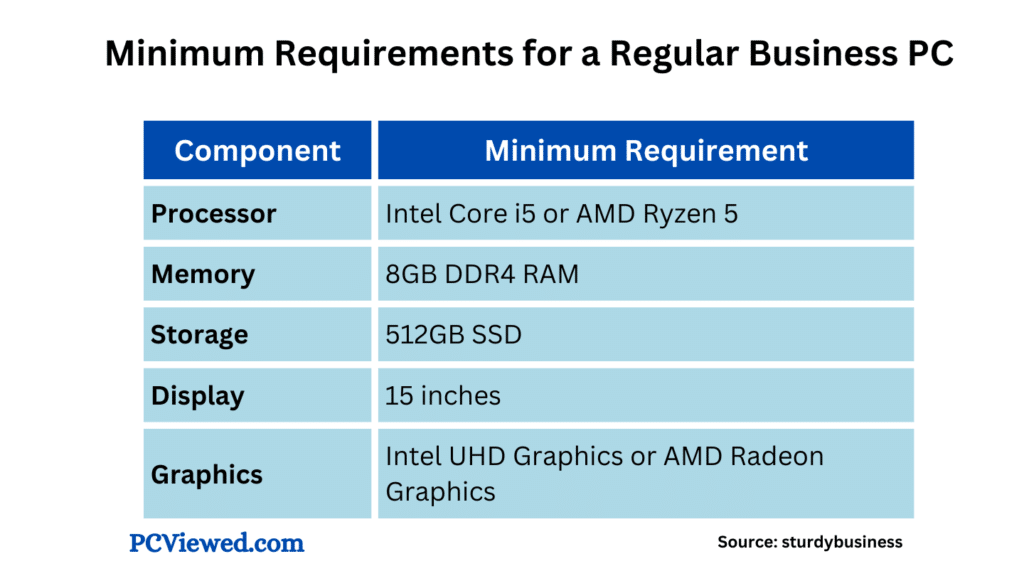
And here is what you need for an extensive workload. You can download these and save them for future use.
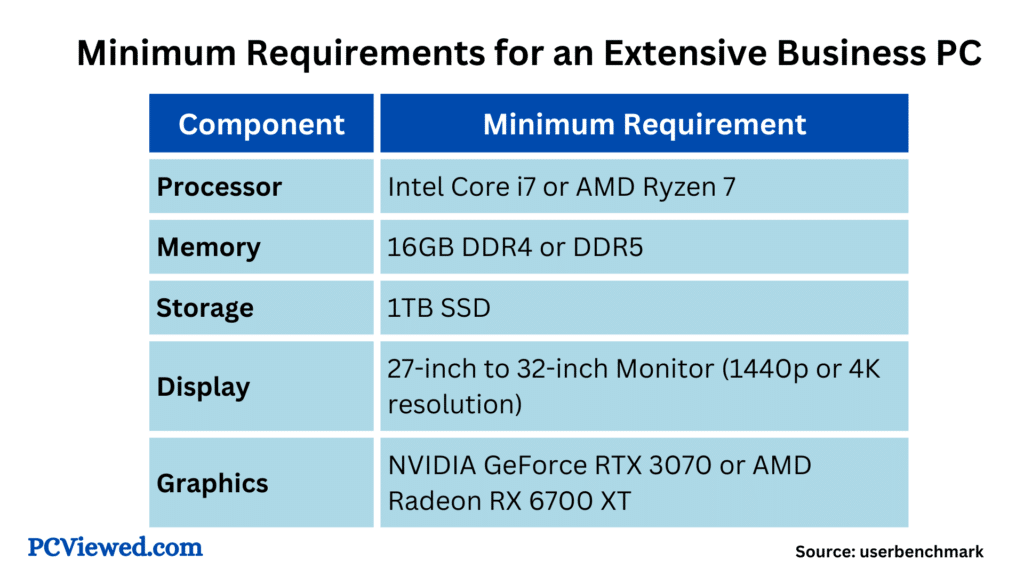
One of the important things about making it possible to get the most out of your business computer is having the right specs. Not selecting the right specs will mean that your computer could start to struggle under your workload, only providing you with frustration and a waste of time.
Be clear about what your computer needs in terms of the type of CPU, RAM, or storage that may come in handy; it really could make a difference in its operation.
The central processing unit (CPU):
You may be tired or hearing this all the time: ‘CPU is the brain of your computer’. But it’s true; that’s what the big tech wizard named it!!
Anything that you do on the computer, whether browsing through the web or editing a document, streaming a video, attending an online meeting, you name it , is all happening due to CPU.
To understand the role of CPU, imagine a chef working in a kitchen.
The CPU takes input, converts signals into binary data, processes the instructions, and produces output. It performs this process billions of times per second.
It will be the speed at which your CPU runs, in Gigahertz, and that will tell you how fast your computer is running. For instance, a CPU with a clock speed of 3.2 GHz is doing 3.2 billion cycles/calculations per second.
Commonly, the faster the CPU, the faster the computer; however, it also depends on other factors, such as the amount of RAM a PC has and whether one uses a fast storage option, like an SSD.
Other than clock speed, there is another important factor to consider. It’s number of cores and threads available in a processor.
As predicted by Gordon E. Moore in 1965, today computers work at parallel computing model. They perform multiple tasks at a time due to multiple cores, threads and GPU. Let’s understand what makes it possible.
CPUs can have multiple cores. Older PCs were often dual-core (2 cores), while modern processors may be quad-core (4 cores), hexa-core (6 cores), octa-core (8 cores), or even have up to 64 cores. Some high-end servers can have more than 128 cores.
If you have an octa-core (8-core) processor, you have eight chefs working at the same counter. While one is rendering a high-def video, another is handling your background downloads, and a third is keeping your web browser snappy.
That’s why your computer doesn’t ‘freeze’ as easily anymore when one program gets heavy—the other ‘chefs’ are still free to handle your mouse clicks and other apps.
Each core can separately work on a task with the same power and speed.
When you open a communication app like Zoom, a Browser like Chrome, the system will automatically assign each program to separate cores.
If you have more tasks than cores, no worries, each core has threads which can run multiple programs at the same time under their capacity.
That’s quite similar to assigning multiple tasks to a single chef. But as computers can perform billions of calculations a second, you don’t easily see the difference.
When choosing a CPU for your business machine, consider:
- Intel Core i3 or AMD Ryzen 3: If you plan to use your PC for basic tasks like word processing, email, and light web browsing.
- Intel Core i5 or AMD Ryzen 5: If you need a PC for moderate multitasking, running standard business applications, managing spreadsheets, presentations, project management tools, and customer relationship management (CRM) systems, as well as basic data analysis.
- Intel Core i7 or AMD Ryzen 7: If your work involves more demanding tasks like advanced data analysis, professional video/audio editing, or high-performance multitasking. Ideal for software development, running virtual machines, or managing high-resolution graphics.
- Intel Core i9 or AMD Ryzen 9: If you handle the most intensive business tasks such as 4K and 8K video production, large-scale data analytics, machine learning, high-end 3D modeling, extensive virtualization, or running resource-heavy applications.
So, to be productive on your PC, make sure to buy a suitable CPU, according to your needs.
RAM (Random Access Memory):
RAM (Random Access Memory) is a crucial component of your computer, serving as temporary storage for everything you’re doing on your computer.
Think of RAM as the available workspace in an office for employees handling multiple projects. If there’s limited space, employees can’t work efficiently, and some tasks may need to wait until space frees up, slowing down overall productivity.
RAM works like a middleman between the CPU and secondary storage, which is volatile in nature. That means, unlike storage devices, it won’t store data permanently. The data will be automatically deleted once you turn off the computer.
However, this middleman is 3000+ times faster than permanent storage.
General considerations:
- More RAM: More RAM gives the CPU access to more data you’re working on simultaneously which improves overall speed. For business use, you should go for 16 GB DDR4 or higher for heavy tasks.
- Upgradability: Consider purchasing an upgradeable computer or go with a higher amount of RAM initially to avoid potential bottlenecks later.
- DDR4 and DDR5: DDR4 is the most common type of RAM used in modern PCs, while DDR5 is the latest and offers improved performance and efficiency. For the best performance, look for devices equipped with DDR4 or DDR5 RAM.
Choosing the right RAM for your business needs:
- For basic tasks: For everyday tasks like web browsing, email, and office applications, 8GB of RAM is generally adequate. But as apps become heavier over time, we no longer recommend 8 GB of RAM for professionals.
- For multitasking and productivity: For tasks that involve frequent multitasking or more demanding applications, such as large spreadsheets or project management tools, you can start with 16GB of RAM is recommended.
- High-performance workloads: For intensive applications like video editing, 3D modeling, or large-scale data analysis, consider PCs with 32GB or more of RAM to ensure smooth performance.
To maximize productivity, select the appropriate amount of RAM based on your usage requirements and potential future needs for upgrades.
Storage (Hard drive):
Hard drives have been the main form of persistent data storage in computer systems for decades.
It’s a non-volatile storage. It’s where you save everything. It houses your OS, applications, and files, including documents and photos.
Hard drives are rated by storage capacity: a gigabyte or a terabyte, of which one terabyte equals 1,000 gigabytes—a lot of storage unless you deal with a great number of video files.
For many, SSDs have replaced the hard drives of yesteryear in computers. Since SSDs are faster and far more reliable, they don’t have any moving parts in them.
Now the question is, how much storage do you need?
- For Web browsing, email, and office applications: According to Samsung’s guidance on business storage, if you handle basic tasks like documents and light office work, a 250 GB SSD often suffices.
- For multimedia consumption, occasional file storage, and standard business applications: 512GB provides ample space for a larger collection of documents, photos, videos, and more applications. Suitable for users who need extra space but don’t work with large files regularly.
- For professional video editing, large datasets, and extensive multimedia libraries: 1TB is ideal for users who handle large files, such as high-resolution video or extensive software applications.
- For high-definition video production, 3D modeling, and extensive data archives: 2TB or more will be best for users with substantial storage requirements, including multiple large projects, backups, extensive multimedia files, and complex software. It provides significant space for large-scale work and future growth.
- Cloud Storage Integration: Consider using cloud storage solutions (e.g., Google Drive, Dropbox, OneDrive) for additional flexibility and to offload some data from your local storage. This can help manage storage capacity and keep local storage requirements lower.
Computer Screens
When choosing a computer screen, business professionals should focus on display features that prioritize productivity, visual comfort during long hours, and accurate presentation of work.
Here are the key factors and why they matter:
Panel Type (Go for IPS or OLED):
- IPS (In-Plane Switching): This is generally the best choice for professionals. IPS panels offer better color production and superior viewing angles compared to older technologies like TN.
In the introduction to flat-panel displays, Jiun-Haw Lee and coauthors explain that IPS displays are adequate for single-user computer use. However, for larger screens, they might not perform as well.
This is crucial for accurate work with documents, presentations, and graphics, and ensures that a document or presentation viewed by colleagues from an angle does not look washed out or distorted.
Professionals dealing with photography and graphics specifically need this color reproduction and accuracy.
However, TN panel is also good for many professionals who want to save some bucks and can compromise color reproduction and viewing angles. - OLED (Organic Light Emitting Diode): It’s a high-end option. OLED offers great colors, the highest contrast ratio (e.g., 100,000:1), and the best vertical and horizontal viewing angles with no color loss. It excels in dark rooms. The only major drawback is that it is not as good for outdoor use.
Resolution (FHD, QHD/2K, or 4K/UHD)
Resolution means how many pixels are used to display an image. Higher resolution means more screen real estate.
- FHD (1920 x 1080): Over 2 million pixels. A good standard minimum.
- QHD/2K (2660 x 1440): 3.6 million pixels. Provides noticeably more room for multitasking, which is ideal for viewing large spreadsheets or having multiple documents open side-by-side.
- 4K/UHD (3840 x 2160): 8.2 million pixels. Offers the maximum detail for intricate work but can negatively affect battery life.
Refresh Rate (RR)
Refresh rate can be defined as the frequency at which display pixels are re-illuminated. In simple words, it’s the speed at which the image redraws. It’s measured in Hertz (Hz). A higher refresh rate reduces eye discomfort and motion blur. You should go for 120 Hz or higher. It’s enough for most business tasks.
Aspect Ratio
16:10: This is often preferred over the standard 16:9 widescreen. A 16:10 aspect ratio provides more vertical screen space, which is a significant benefit for productivity tasks like reading and editing documents or browsing websites, reducing the need for constant scrolling.
| User Type | Monitor Size (Desktop) & Portability (Laptop) | Recommended Resolution (Laptop/Desktop) | Why It Matters |
|---|---|---|---|
| Basic Users | Laptop: 13-inch (for maximum portability). Desktop: At least 21 inches. | FHD (Full High Definition) (1920 x 1080) | FHD uses over 2 million pixels, sufficient for general usage. 13-inch laptops are easy to carry. |
| Moderate Users | Laptop: 15-inch (for balance). Desktop: 24 to 27 inches. | QHD (Quad High Definition) / 2K (2660 x 1440) or 4K / UHD (3840 x 2160) | QHD/4K provides more screen space and detail for multitasking. Note that 4K can negatively affect battery life. |
| Heavy Users | Laptop: 15-inch or 17-inch. Desktop: 27 inches or larger. | 4K / UHD (3840 x 2160) or higher. | Tasks like professional 3D rendering, 8K video editing, and complex simulations require powerful components, often paired with high-resolution displays. |
Graphics
Graphics is the other thing that must also be considered and to a great extent, depending on the nature of your business.
The GPU is another place where your data is processed. It’s slower than the CPU for general tasks, but with thousands of cores, the GPU is very important for graphics rendering.
Here’s what you need to know:
Integrated Graphics: Integrated graphics are installed in the processor itself, sharing its memory and resources with the CPU. This is the least expensive option and is effective for someone doing basic activities such as internet searches, word processing and ordinary applications.
Dedicated Graphics: Dedicated graphics cards are independent hardware units separate from the CPU. They are also known as discrete GPUs. They contain their own specialized processing cores and their own dedicated memory (VRAM) optimized for graphics and parallel computation.
Their primary job is to accelerate rendering and graphics-related tasks, freeing the CPU from these duties. They can perform trillions of calculations a second.
These are designed for more serious graphical processing tasks like 3D design, moving images, and complex virtual tasks.
If your business is involved in media creation, CAD work, or gaming, then a dedicated graphics card is highly important for that. Some of the popular discrete graphics include the GeForce and Quadro series by NVIDIA or Radeon and FirePro by AMD.
NVIDIA dominates the discrete GPU (AIB) market, commanding a staggering 92% market share in Q1 2025, according to Jon Peddie Research. AMD controls just about 8%, while Intel’s share is virtually negligible.
This overwhelming dominance shows that if your business needs dedicated graphics, NVIDIA is overwhelmingly the default choice, especially for performance-critical applications.
Budget vs. Premium Options
Budget Options:
Budget computers are those that work best for small businesses or any other startups on a very tight budget. Because the number of features included is more basic, they are less expensive.
They have generally lower processing power, less RAM, and slower storage, such as using traditional HDDs instead of SSDs. However, they can run everyday tasks such as word processing, email, and web browsing; hence, they should be fairly adequate for businesses that do not need high computing power.
Premium Options:
Premium computers have more expensive price tags but can boast of better performance, build quality, and additional features. These machines carry faster processors, more RAM, SSD or NVMe storage, and sometimes even dedicated graphics cards.
They are designed to appeal to businesses needing high-performance applications, working with massive files, or requiring their devices to last for years. The investment in premium options may pay for itself if your company is completely dependent on fast, efficient computing or if you look at future-proofing equipment.
- HP Business All-in-One Desktop: This premium computer is well known for its great build quality, high-resolution display, and strong performance, making it perfect for business professionals who require a powerful machine that can be easily carried to work during travels and meetings.
- Apple MacBook Pro: This is a dream machine for creative professionals. The performance is phenomenal, particularly in graphic design and video editing, and does work easily with other Apple products.
What to expect in different price ranges?
Under $500: Expect budget laptops and desktops that are good for basic tasks. You’ll find lower processing power, minimal RAM (around 8GB), and traditional HDDs or small SSDs. These are suitable for light office work but may struggle with more demanding applications.
- Pros: Affordable, good for basic tasks, sufficient for light users.
- Cons: Limited performance, lower build quality, may need upgrades sooner.
But we have compiled a great list of laptops that you can’t expect for under $500.
$500-$1,000: This range includes more versatile options with better processors, 8GB to 16GB of RAM, and SSD storage. These computers can handle more business tasks, including multitasking and basic creative work.
- Pros: Good performance for the price; handles more demanding tasks; better build quality.
- Cons: May still lack power for very intensive tasks or specialized software.
$1,000-$1,500: Here, you’ll find high-performance laptops and desktops with strong processors (like Intel Core i7 or AMD Ryzen 7), 16GB of RAM, and larger SSDs. These are ideal for most business functions.
- Pros: Excellent all-around performance, durable build, handles most business tasks.
- Cons: A higher price might be overkill for basic tasks.
$1,500 and Above: At this level, you get top-tier machines with the latest processors, up to 32GB of RAM or more, dedicated graphics cards, and high-quality displays. Perfect for businesses needing the best in speed, graphics, and reliability.
- Pros: Top performance, future-proofing, excellent build quality, extra features like high-resolution displays or advanced security options.
- Cons: Expensive; may offer more power than needed for average users.
Making the Best Buy
This statement might mean a lot when it comes time to buy the most suitable computer for your business. For what purpose do you want to buy your computer?
- Are you a business professional requiring a reliable machine for multitasking, emails, and video conferencing?
- Do you manage data-intensive tasks or need a workstation for business applications like CAD or software development?
- Are you a business owner on the go, needing a portable yet powerful machine for meetings and presentations?
- Do you run a small business and need a desktop PC for everyday business tasks like accounting, managing emails, and handling documents?
Knowing what you need will help you not overspend on things you don’t need or miss important features for your business.
Think of where your business is headed. If you plan for growth or more complex projects, a little expenditure at this point might save an upgrade in the future.
Compatibility is key—you should consider whether the computers work with systems and software you’re already using. Most importantly, though, you’ll need a realistic budget.
From where to buy?
Amazon is a great website to buy from with a lot of options and good prices. They usually have amazing sales if you can catch them on their sales.
About discounters: Read this guide to find out the best times to shop and save on Amazon.
It is also important to understand the options regarding warranty. You may get a one-year warranty by default; in the case of high-end machinery, you may choose to go for extended coverage.
Accidental damage protection will be an excellent add-on, especially if your computers are in environments where accidents are prone to happen.
Finally, good customer support is priceless—it can mean quick solutions and peace of mind when something goes wrong.
What’s the difference between a business computer and a regular computer?
Business computers are often more powerful than regular computers and specifically designed to handle demanding applications, and they come with additional features such as enhanced security.
How long do business computers last?
Business computers typically last 5 to 7 years with proper use and maintenance.
